
If you’re a Canva user, you might’ve seen their latest keynote pop up in your dashboard at the end of October. It came with a bunch of new updates and features across the platform.
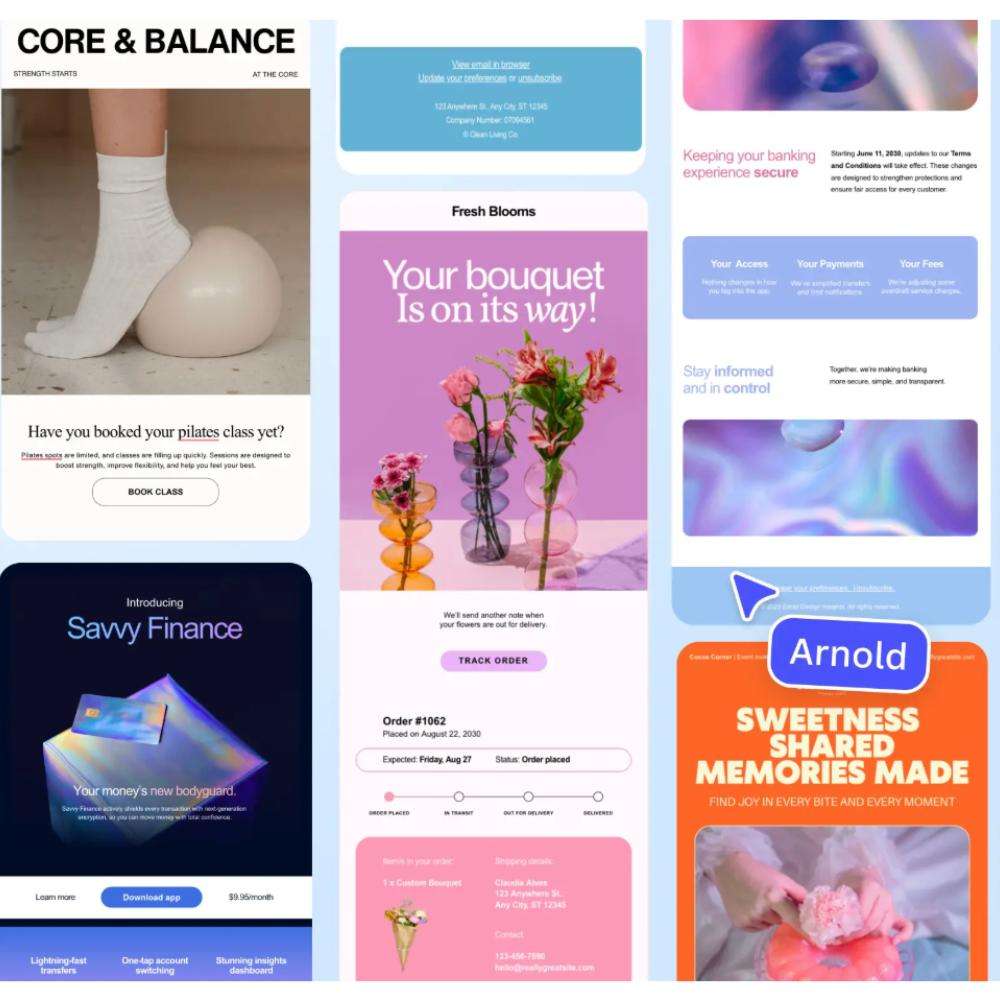
But the update that I know is on most of your minds is the email designer update. Yep, you can now design emails in Canva and export the HTML to import into your email marketing platform.
For those who long for pretty designer level emails, this sounds like a dream come true. But before you go down the rabbit hole of creating HTML emails 3 times a week, give me a few minutes to explain some of the reasons why it’s not quite as good as it seems and to hopefully eliminate any FOMO you might be feeling at the moment.
Prefer to listen to the episode? Click here.
Designing HTML Emails in Canva
When using the email design functionality, it works like Canva docs vs. a traditional canvas design.
It’s nice because the length of the page will adjust as you add more content, and there are a bunch of pre-designed blocks to speed up the design process… but you do lose a bit of the ease and flexibility you get when using a standard design.
For example, let’s say you want to use an image in your design and then add elements on top of that image. You can’t just drag and drop elements into your email design, you have to click on that image to open up a design window to make your edits.
Obviously that’s not a huge deal, but it does make the process feel a bit more clunky.
What Designing HTML Emails in Canva Can’t Do
As cool as the html email design features are in Canva, there are still a few limitations to keep your eye on.
For example, while you can pull in other designs from your account and insert them into your email, finished designs are exported as images. So it doesn’t take the elements of your design, for example an image, text, and a button and turn it into HTML. In that case, you’re better off just creating it from scratch in the email design itself.
Also, when adding text to your design, this is still creating HTML text which is limited to web-safe fonts. So just because you choose one of Canva’s hundreds of available fonts, it doesn’t mean the email providers can actually render those fonts. If you want to use super fancy fonts in headings, you’ll still need to render those as images.
And then lastly, while the emails are responsive on mobile, you don’t actually have any control over how they respond. From what I can tell, there is no mobile specific editing option.
Exporting Emails From Canva
Once you’ve finished designing your email, then you can export it. At the export step, you only have a handful of options. You can export directly to Mailchimp and Gmail. I searched for a Klaviyo export, but that doesn’t seem to be an option. And yes, I’m already integrated with Klaviyo to export designs, so this is completely separate and not yet supported. Maybe that will change.
You can download it as a PDF, or of course as HTML. 99% of the time, you’ll be downloading the HTML. Unfortunately, you can’t download it as an image which would be kind of cool if you wanted to crop up your design yourself and import it as images.
Importing Your Canva Email Design to Klaviyo
Once you’ve exported your design, now it’s time to import it into your email marketing platform. I’m going to be talking specifically about Klaviyo and some of the things to keep your eye on, but they’re likely similar in any platform.
The first thing to note is that when you import an HTML template to a Klaviyo template it becomes a fully HTML email, which means you lose access to the standard Klaviyo blocks, and any dynamic content functionality.
Also, when importing to Klaviyo you must have a Klaviyo specific unsubscribe placeholder otherwise the import will error out. That means you need to make sure you add it to your Canva email design or update the existing unsubscribe link in your starting template with the Klaviyo specific placeholder.
All that said, one of the things you might want to consider… if you’re really hell bent on using Canva’s email design functionality is that instead of using a fully HTML email template that can’t be edited with Klaviyo’s native tools that you instead add that HTML to an HTML block in a regular Klaviyo email template.
For example, let’s say you have a header, dynamic rewards, and footer block in Klaviyo that you always use. Create a template with those sections that you can pull into your email. Then, you design your HTML email in Canva, and import that as an HTML template in Klaviyo. Once it’s imported, you can copy and paste the HTML from that template and add it as an HTML block in your other email.
It sounds ridiculous and like a lot of extra work doesn’t it? It might have even been difficult to follow or understand. Yes, because it is and I don’t actually recommend you waste your time doing this, but I wanted you to know it was an option.
If you are going to go this route, import the entire HTML template first and copy and paste teh HTML from there. If you were to take the raw HTML that is exported from Canva, you’ll have to re-link your images which is a pain in the butt. When you import the HTML code as its own template first, the images will already be properly linked and you can just copy and paste from there.
My Final Thoughts on Using Canva’s HTML Email Designer
At the end of the day, unless you’re already using another platform to design HTML emails, this isn’t worth the switch. Honestly, it’s just one more shiny object that is going to suck up A LOT of your time and likely won’t result in any additional ROI, or at least not enough to make up for the extra time it takes to design your emails.
Personally, I found the email designer to be clunky and more time consuming. Granted, that could be because I’ve been using Klaviyo and other email platform designers for 15+ years, but still. I just don’t think it’s worth the trouble for 99% of small eCommerce business owners.
Instead, I recommend you take some time to build out a handful of reusable sections, blocks and templates in your email platform’s designer that you can reuse. There is actually a lot you can do in these builders if you take the time to learn them. And then, when there is something you can’t do natively, that’s when you can get creative and use images to your advantage.
In case I haven’t convinced you to ignore this shiny object, I’ve got a few links in the show notes to platform documentation that will walk you through the HTML template import process and how to make sure you have your necessary placeholders.
If you are dead set of testing out this new functionality, please wait until the new year. Do not be wasting time scrambling trying to use this for Q4 emails. I’d rather you focus on getting more eyeballs on your business, or just enjoying the holiday season.


